
Embedchina@armv.cn supports the personalization of agents. http://www.armv.cn describes this smart clock as having time management features that can be used on a daily...
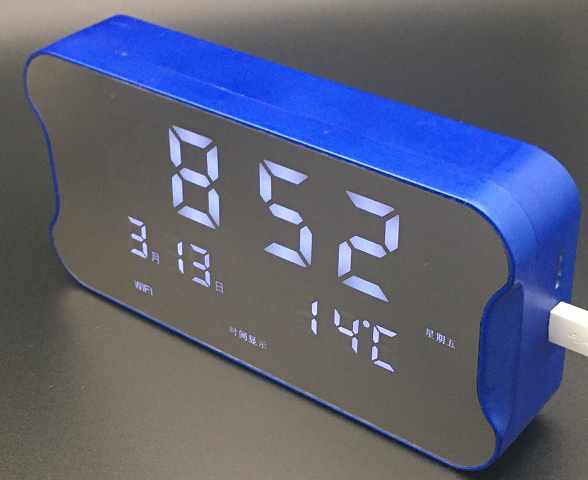
Amowei® Smart Music Clock
Contact information 011-51.36000
embedchina@163.com
Supporting agency customisation, http://www.armv.cn
[[heading]]
[[/heading]]
Introduction
This smart clock is characterised by time management, with up to 88 music playing at different times of the day.
You can set the duration of the music play, and the mode of play, including single loops and multiple musics under the same directory
. You can set playing switches for Monday to Sunday corresponding time slots.
This clock is wifi and can be set up with computer software.
With mp3 music, you can set any music you want to play.
Equipped with 50 MIDI music pieces
This clock is a simple version, a normal version, a wifi cloud clock version, a mobile narrowband online version of China, a GPS version, and a new version of the Internet.
DIY player version, weather forecast language version.
The simple version does not have a mp3 function and has MIDI music, suitable for people without computers, or for the elderly.
The normal version has all the features, but it cannot automatically fix the time through a remote server. It is suitable for domestic use.
The wifi cloud clock version automatically connects a remote server to amend local time automatically. There is never a need for manual correction time for use by a company or plant.
In China, the mobile narrowband network version does not require any settings for users to access the Internet automatically and to update the time automatically. The disadvantage, however, is that the internal sim card covers only three years of traffic, with an annual fee for traffic exceeding China’s movement.
The GPS version can automatically adjust the time to the satellite without a network.
The DIY player version is intended only for young technical users who are skilled in operating computers.
The weather forecast is broadcast in a language where users press the weather forecast play button and the local weather forecast is broadcast by voice on the day.
Time settings are set in five ways, by buttons, by USB settings, by wifi, by NB-IOT, by GPS settings. Users can set settings according to the type they purchase.
But in either way, setting with buttons is a function. Of course, the buttons set the lowest priority. That is, if you set the time first with the buttons, but then again.
Use one of the settings in USB,wifi, NB-IOT, GPS, which will override the time set by the button.
2. Alarm clock button function
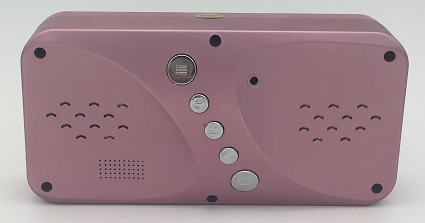
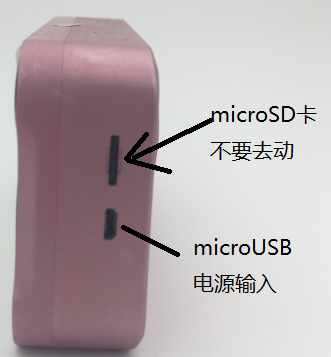
Detailed explanation of button functions
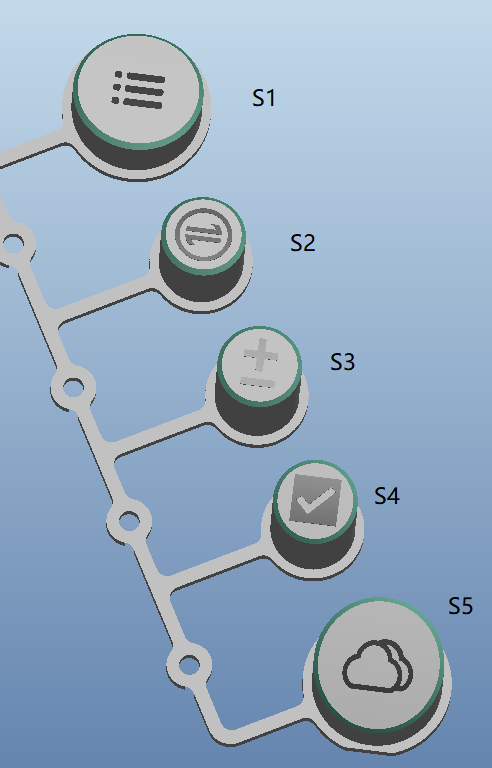
S1 function switching button
S2 left and right movement button
S3 increase and decrease button
S4 OK button
S5 MIDI music selection button
Function switch key S1

。
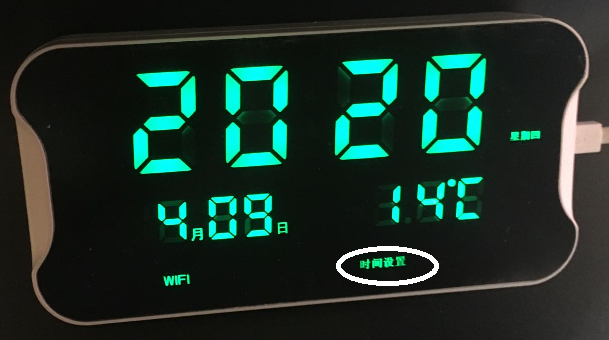
First time press S1, you can enter the time set state.
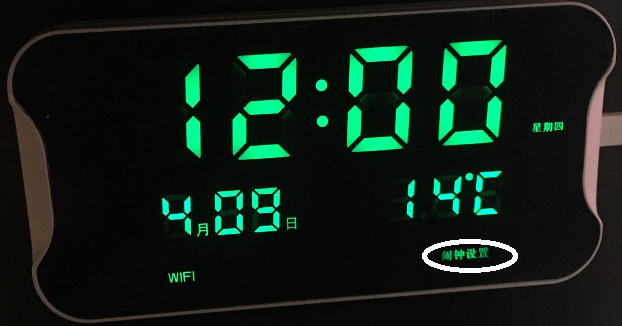
The second time, press S1, you can enter the alarm setting.
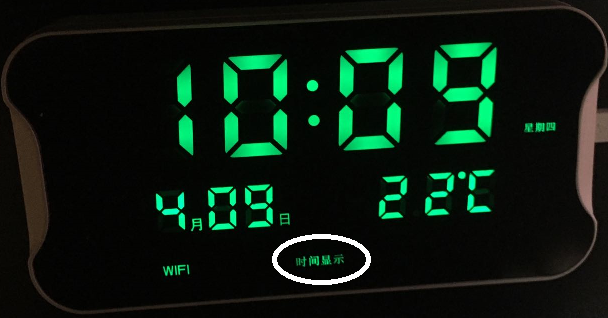
For the third time you press S1, you can enter the normal time display.
Adjustment time
Button button S1 presses and enters the time settings. The time setting light at the bottom is on. In this state,
Press S2. The cursor will rotate between time, time, month, day, and the corresponding number will blink, indicating the number that is currently to be set. In scintillation, the corresponding number will be adjusted by S3.
When the time setting is complete, press S4 saves the data and automatically returns to the initial state-time display status. If you do not press S4, and if you press S1, you do not save the data and return to the initial state.
Selection of year, month, day, hour, minute and second

First time on S2, the four display tubes above are blinking year by year
Press the second time, the month below flashes
Press the third time, the day below flashes
Press the fourth time, the hours flash
Press the fifth time, the minutes flash
Adjustment of year, month, day, hour, minute and second

S3, if you select the corresponding time and time seconds of the year, press,
One at a time and zero at a maximum.
[[heading]]

Preservation of time [/healthing]
Confirmation key S4: Confirm the previous operation.
Alarm clock setting
Press the S1, for the second time, to set the alarm, and this time, to set the light on. Press the S2, the blinking numbers will be rotated from time to time. The corresponding numbers will be adjusted by the S3.
Press S5 to select the corresponding alarm music, save the data by S4 and return to the initial state. If you do not press S4, the data will not be saved and will return to the initial state if you do not press S1.
Normal time display
When panel time shows a light, press S4 to hear the currently selected alarm.
Press S3 to adjust the volume
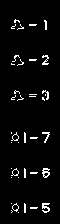
Select the alarm clock by S2: day by day (1-7 icon), Monday through Friday (1-5 icon), Monday through Saturday (1-6 icon), alarm by day (no icon).
If the mp3 version of the alarm clock is used, you can close the embedded MIDI alarm, or the MIDI alarm set by the button will ring when the time comes.
Interruption of music playback
If you're playing music, press S2, and the music ends automatically.
Volume adjustment
First, the time to go back to the panel shows the signal light, press S3, adjust the sound, and there are four stages, and the horns sound with a resonance.
Voice weather forecasts broadcast (only advanced versions available)
If you have no choice, you will not play the weather forecast.
Unable to retrieve weather forecast.
Use computer software to set the clock
Note: The simple version cannot use this software
The above rules only apply to situations where a button is used, and if a wifi is downloaded through the PC computer application, the music will be played according to the computer application settings.
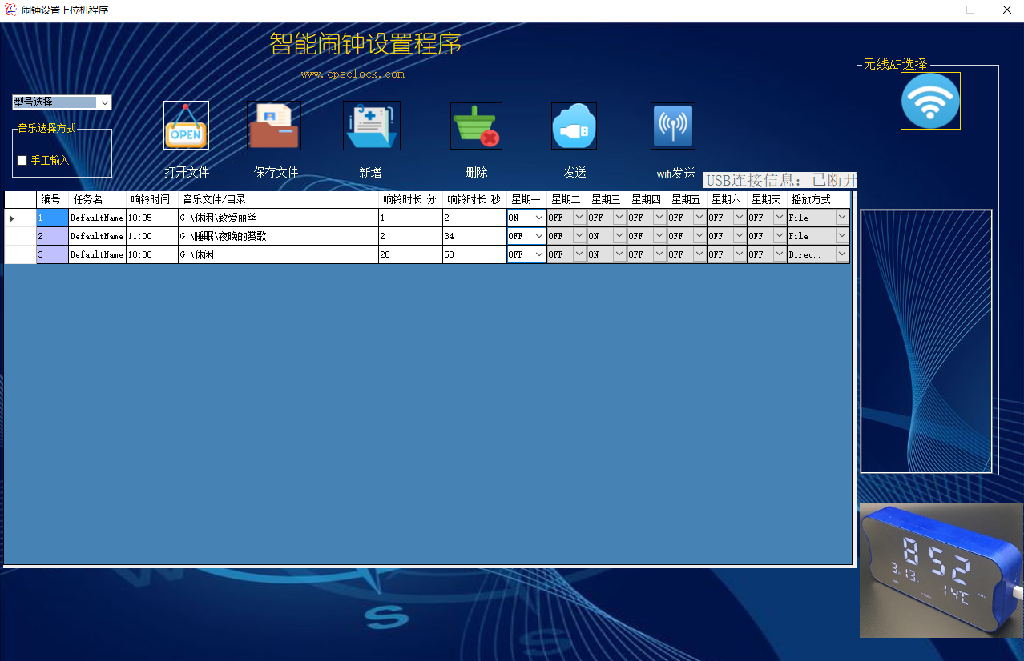
Opens the file, you can open the pre-saved profile. First use is not required.
Save file, save this configuration file
Add a record for playing music
Delete, delete the current record
wifi sends the configuration information to the smart alarm clock.
The first use of a clock must be set, and no computer setting is required in the future as long as the configuration is not modified.
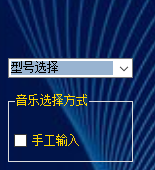
First use, start with the software, select the model above the left. Note that computers must have normal access to the Internet at this time.
The software will automatically transfer the music track information that corresponds to the clock. As shown in the chart, the type of the clock is selected in the middle, with different types of music customised.
Here, for example, the Armv-001, which corresponds to the purchase, is for ordinary household use.
If you choose manual input, you do not have to choose the model, you can copy the music yourself, configure it. But this function is only for DIY players, and users generally do not try it.
After completing the model selection, click Add.

Enter the task name (default value available),
Ringing time (must be a half-angle input method, not a Chinese input method)
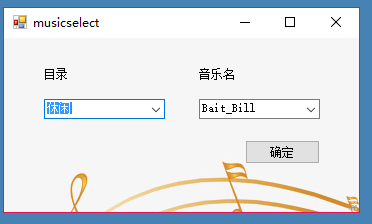
Music Selection: When the last is the file method, it means a single play, pops up the following menu:
When the end is the direction of the directory, it means the directory is played, and the popup menu is as follows:
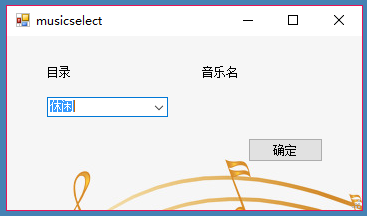
Directory means that each time you play all the music in the entire directory folder. For example, there are two folders, one for leisure and the other for work, which, if you choose leisure, means playing all the music files in that folder.
Ring the bell for a long time (must be a half-angle input method, not a Chinese input method)
The switch from Monday to Sunday allows control over the play of the day during the week.
Note: If the play time is short, the catalogue mode is only able to play the first music in the current directory. Unless it is long enough. For example, the first music is two minutes long, the second music is three minutes long, and the selection is three minutes long, then the second music ends automatically one minute after the first play. If the set is long enough, then the current directory can be played automatically until the end of the time.
Note; bells should be set at different times to avoid conflicts between the play of different music.
When all content is set, it is recommended that the file be saved for next use and modification.
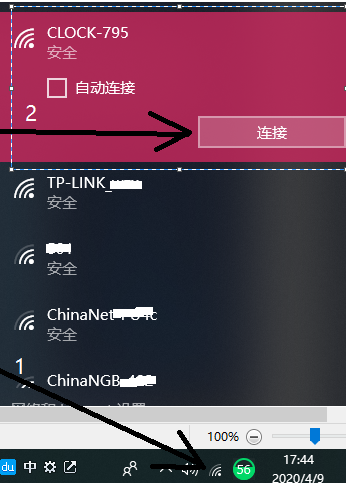
Then you start connecting to the network, starting with the alarm clock, waiting for one minute to select the wireless hotspot starting with Clock, and then click on the connection. Enter password 12345678.
After the connection is completed, the following appears:
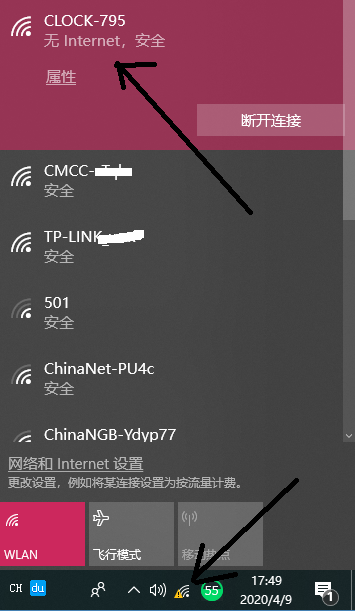
The first is a wireless and triangular warning sign on the lower right corner of the computer, indicating that the alarm clock has been connected.
Then click on
When you hear the alarm clock three times, the setup is successful. Note that you must turn on the corresponding play switch from Monday to Sunday to play it.
Connect to the remote server and automatically update the time
For the cloud clock version, there is a need to set up access routers.
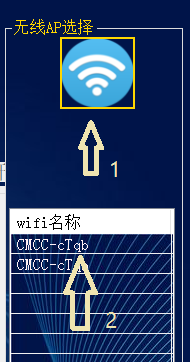
Click on wireless AP to select the icon, appear the current list of wifis, select the router to access, click on the popup interface
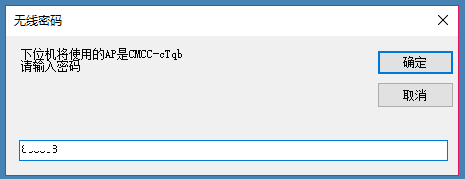
Enter the router password, after confirmation. Finally you have to click
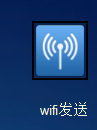
, the configuration information is automatically sent to the alarm clock.
The clock is corrected between 2 and 6 a.m. every day.